GIF Capture Add to Chrome

Screen recorder & GIF maker for Chrome

Record your screen as a GIF. Edit it. Ship it.

Capture a region, tab, window, your whole screen or even your webcam. Trim, annotate, blur and compress in one editor, then export a GIF or video that fits wherever you share it.

Private by design: no uploads, no watermarks, works offline.

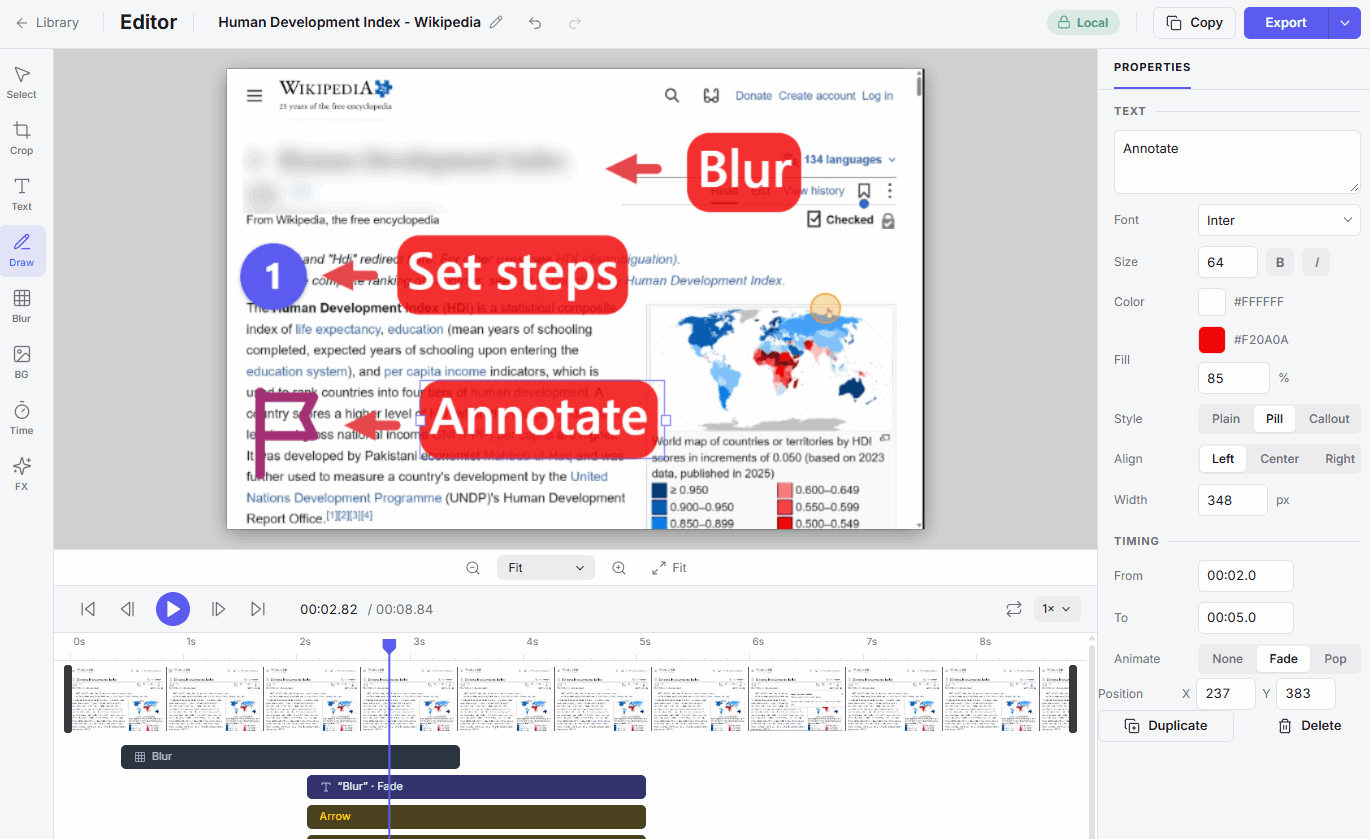
The GIF Capture editor with a timeline, blur, arrow and step-number annotations on a recorded web page
  • No uploads
  • No watermarks
  • Works offline
  • GIF, WebP, MP4 and WebM export

Everything between “record” and “send”

One extension replaces the screen recorder, the GIF converter, the annotation tool and the file-size guesswork.

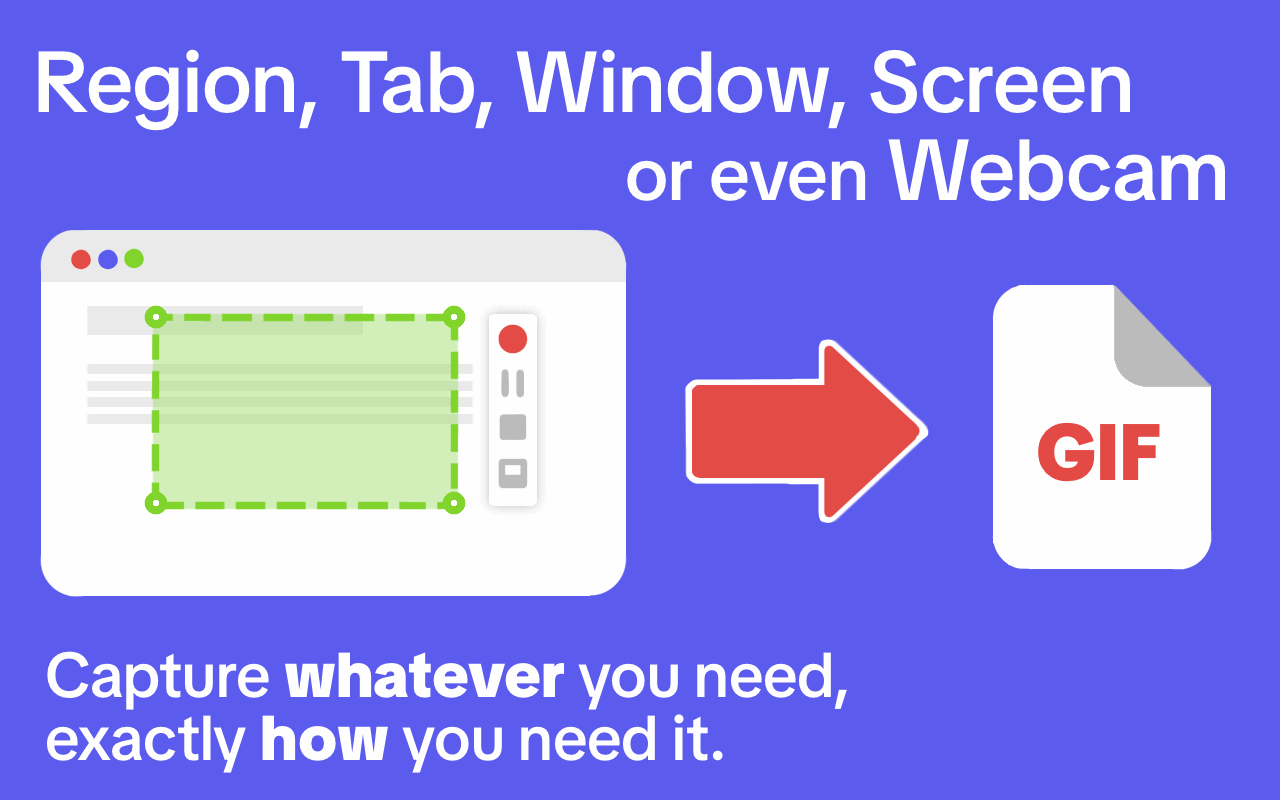
Record a region, tab, window, screen or webcam and turn it into a GIF

Capture whatever you need, exactly how you need it

Pick the source that fits the job, from a few pixels of a page to the entire desktop.

  • Region, browser tab, single page element, window, full screen or webcam
  • Pause, resume and countdown while you record
  • Mouse clicks and key presses shown on screen
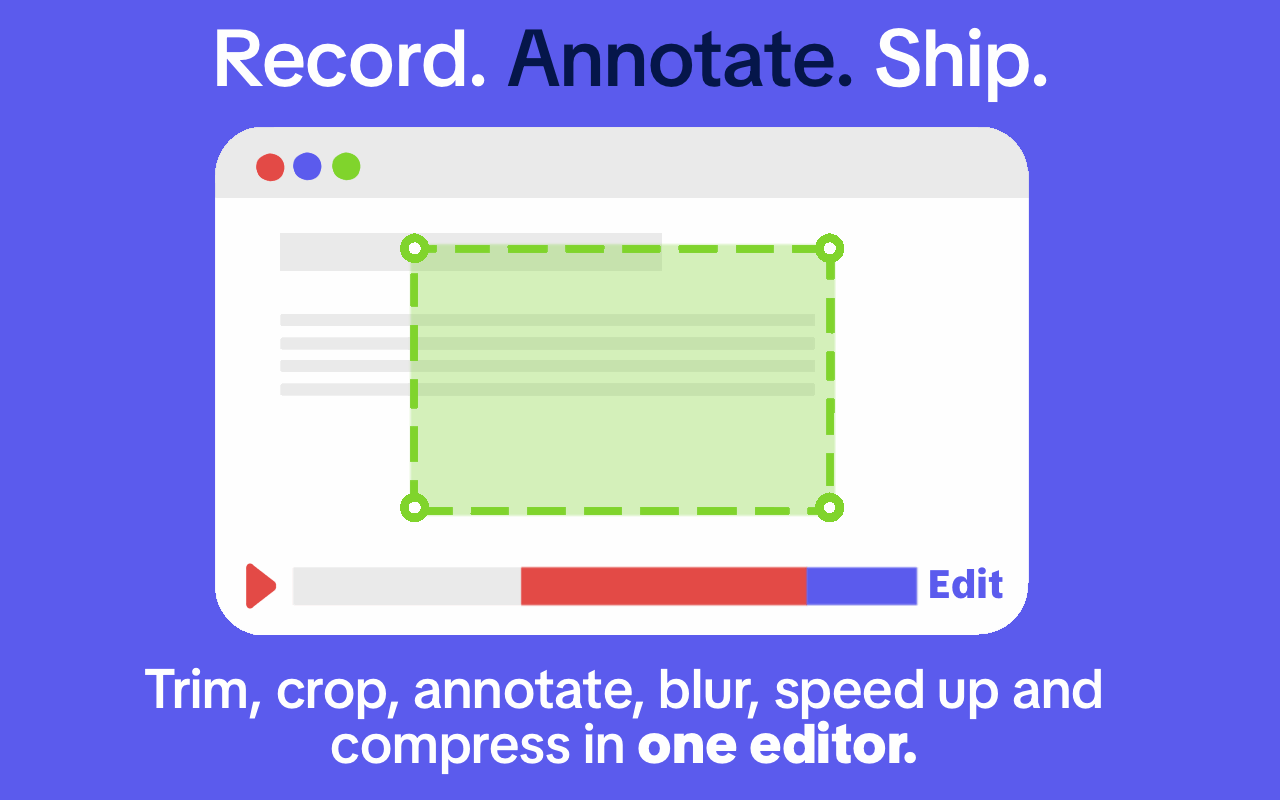
Record, annotate, ship: trim, crop, annotate, blur and speed up a recording in one editor

Record. Annotate. Ship.

A full timeline editor lives inside the extension, so there is no second app to open.

  • Trim, crop and change the speed of any part of the clip
  • Add text, arrows and numbered steps that appear exactly when you need them
  • Frame it with a background or a browser mockup
Blur passwords, tokens and personal data before sharing a recording

Blur it before it ships

Hide passwords, tokens and personal data with the blur tool, for just the seconds you need.

  • Blur any area and choose when it starts and stops
  • Keystrokes typed into password fields are never recorded
Compress a GIF so it fits any ticket, chat message or email attachment

No more 40 MB attachments

Compress your captures to fit any ticket, chat or inbox without trial and error.

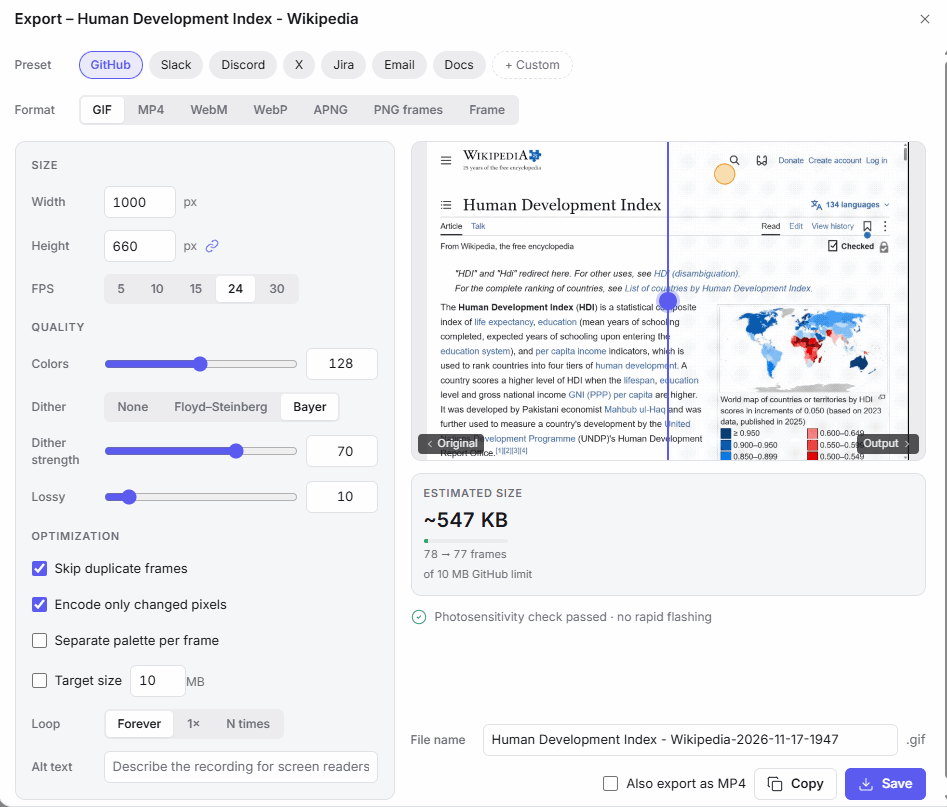
  • One-click presets for GitHub, Slack, Discord, X, Jira, email and docs
  • Live file-size estimate before you export
  • Export as GIF, animated WebP, MP4 or WebM
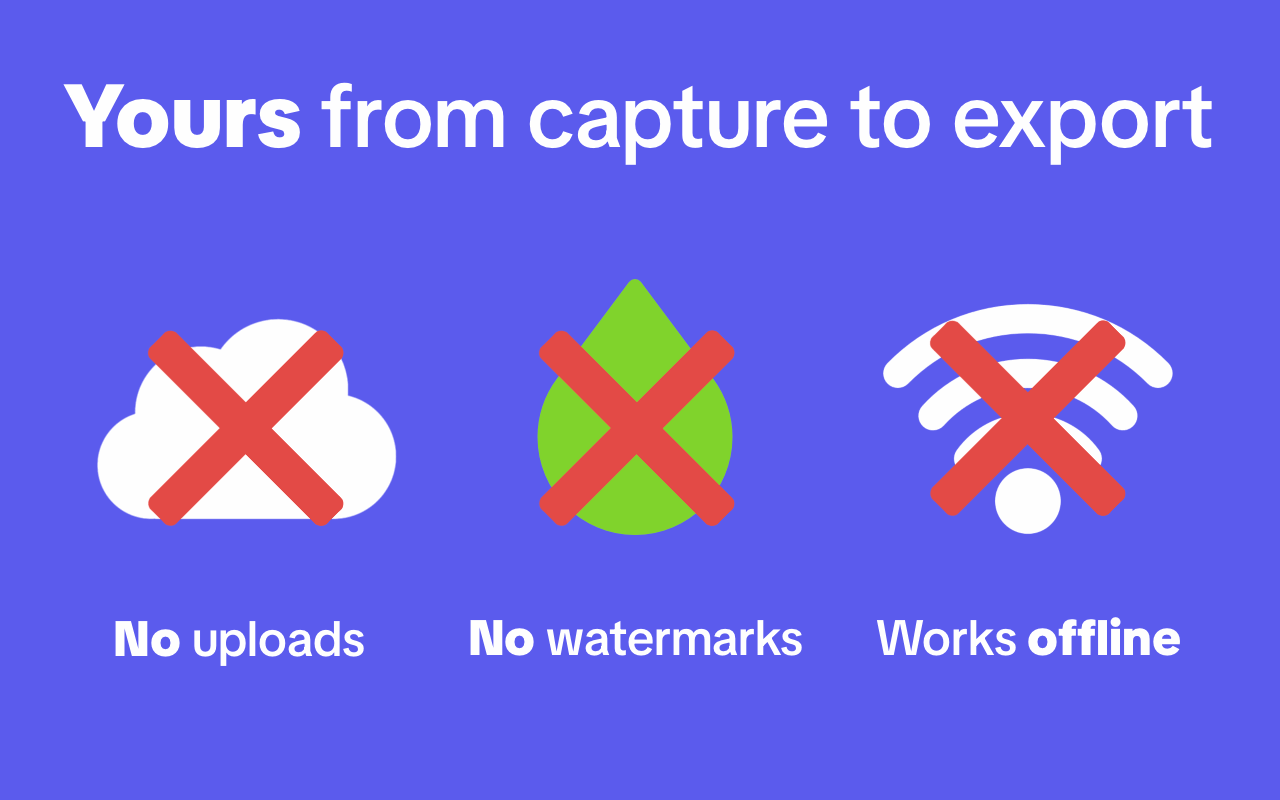
Yours from capture to export: no uploads, no watermarks, works offline

Yours from capture to export

Recording, editing and exporting all happen inside your browser. Your files stay on your device.

  • No uploads and no watermarks
  • Works offline
  • Sharing to cloud services is optional and off until you connect one

And the details that save you time

Cursor and keystrokes

Show clicks and shortcuts like Ctrl+S so viewers can follow along.

Local library

Every recording is saved in your browser, ready to re-edit, re-export or clean up later.

Crash recovery

If a tab or the browser closes mid-recording, you can pick up what was captured.

How to record a GIF in three steps

From install to a shareable file in about a minute.

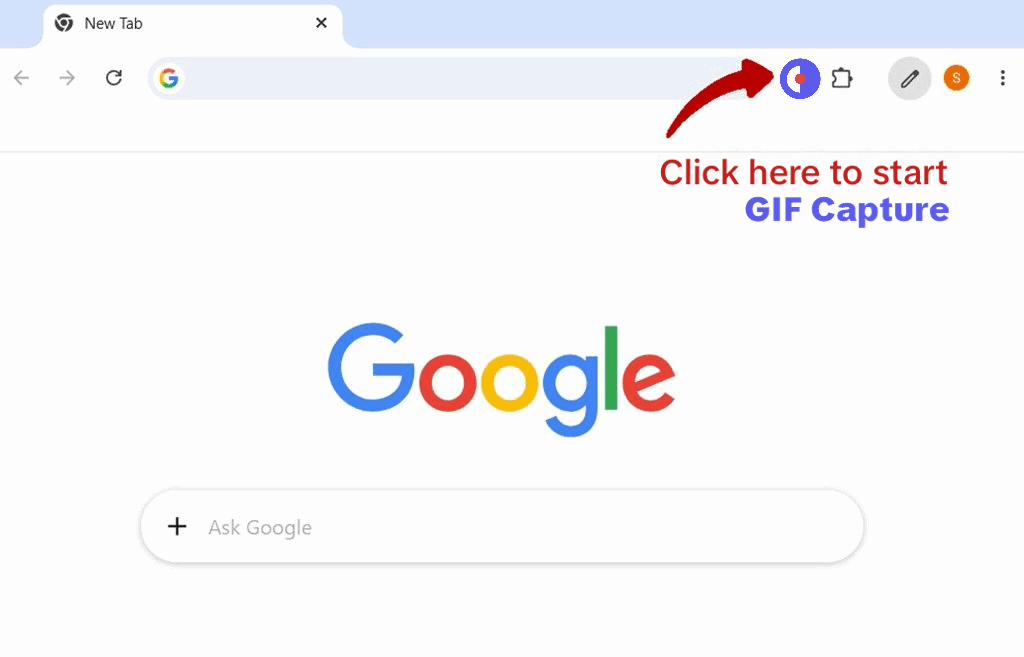
  1. Install and pin

    Add GIF Capture to Chrome, then pin it to the toolbar so it is always one click away.

    Chrome toolbar with an arrow pointing to the GIF Capture icon
  2. Choose and record

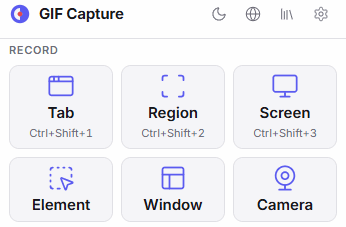
    Click the icon, choose a region, tab, window, screen or webcam, and press Record. Press stop when you are done.

    The GIF Capture popup with Tab, Region, Screen, Element, Window and Camera recording modes
  3. Edit and export

    Trim, annotate and blur in the editor, pick a preset such as Slack or GitHub, and export your GIF or video.

    The GIF Capture export dialog with presets, quality settings, a preview and the estimated file size

Made for people who show, not tell

Bug reports and QA

Show the exact steps, blur the sensitive bits and attach a small GIF that opens right inside the ticket.

Docs and tutorials

Numbered steps, arrows and text callouts turn a quick recording into clear how-to documentation.

Support and onboarding

Answer “how do I…?” with a short clip instead of a paragraph and five screenshots.

Pull requests and READMEs

Demonstrate a change in a GIF that stays under GitHub’s upload limit.

Frequently asked questions

How do I record my screen as a GIF in Chrome?

Install GIF Capture, click its toolbar icon, choose what to record (a region, tab, window, screen or webcam) and press Record. When you stop, the recording opens in the editor, where you can trim it and export it as a GIF.

Does GIF Capture upload my recordings?

No. Capturing, editing and exporting all happen in your browser, and recordings are stored locally. Nothing is uploaded unless you choose to share a file with a cloud service yourself.

Does it add a watermark?

No. Exports never carry a watermark.

Which formats can I export?

Animated GIF, animated WebP, MP4 and WebM. You can also export a single frame as an image.

How do I keep a GIF under the size limit of Slack, GitHub or email?

Pick a preset such as GitHub, Slack, Discord, X, Jira, Email or Docs. GIF Capture sets the width, frame rate and colors for that destination and shows a live file-size estimate before you export.

Can I hide passwords or personal data in a recording?

Yes. Use the blur tool in the editor to hide any area for as long as you need. Keystrokes typed into password fields are never recorded.

Can I capture a bug that already happened?

Yes. Turn on Keep last 30 seconds and GIF Capture holds the most recent 30 seconds of the current tab in memory. When something goes wrong, save it and the clip opens in the editor.

Does it work offline and on Mac, Windows and Linux?

Yes. GIF Capture is a Chrome extension, so it runs on any desktop system that runs Chrome, and it needs no internet connection to record, edit or export.

Your next GIF is one click away

Add GIF Capture to Chrome and turn anything on your screen into a clean, small, shareable clip.

Add to Chrome